Securing communication to and from your Active Directory domain controllers is a non-negotiable aspect of modern enterprise security. One of the most fundamental ways to achieve this is by issuing certificates to these critical servers, which enables encrypted services like LDAPS (LDAP over SSL/TLS). While Active Directory Certificate Services (AD CS) provides several out-of-the-box options, creating a custom Domain Controller Certificate Template is the recommended best practice for gaining granular control, enforcing modern cryptographic standards, and ensuring a robust security posture. This process allows administrators to move beyond the default settings and tailor certificates specifically for the unique and sensitive role that domain controllers play in the network.
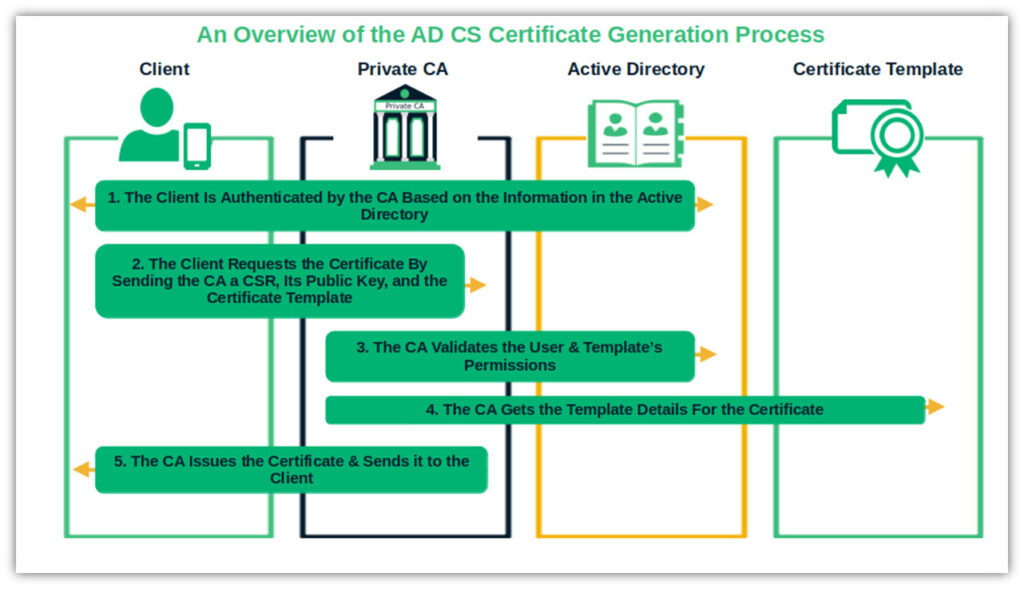
A certificate template is essentially a blueprint or a pre-configured set of rules and settings stored within Active Directory. When a device, user, or service requests a certificate from a Certificate Authority (CA), it specifies which template to use. The CA then uses that template's configuration to generate and issue the final certificate. This mechanism simplifies certificate management by ensuring consistency and enforcing policy across the entire enterprise. Instead of manually specifying details like key length, subject name, and intended purposes for every request, administrators can define these parameters once in a template and deploy it for automated issuance.
Using the default templates, such as "Kerberos Authentication" or the older "Domain Controller" template, can be a quick way to get started, but it often comes with significant drawbacks. These defaults may use outdated cryptographic algorithms, have overly permissive settings, or lack the specific configurations needed for modern security requirements. By creating a dedicated template, you can mandate stronger key sizes (e.g., RSA 4096-bit), specify modern hash algorithms like SHA256, and precisely define the application policies and subject name construction. This proactive approach not only hardens your infrastructure but also provides a clear audit trail and simplifies future certificate lifecycle management.
This article will serve as a comprehensive guide to understanding, creating, and deploying a custom certificate template for your domain controllers. We will explore why these certificates are essential, compare the default templates to a custom-built one, and provide a detailed, step-by-step walkthrough of the creation and deployment process. We will also cover verification techniques and common troubleshooting steps to ensure a smooth and successful implementation, ultimately strengthening the security core of your Active Directory environment.

Why Domain Controllers Need Certificates
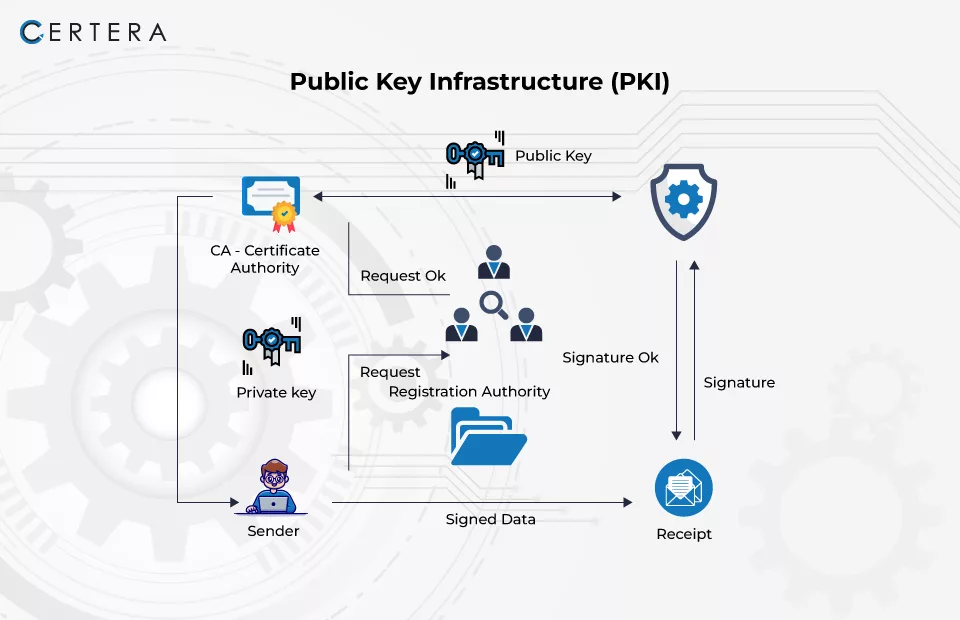
Domain Controllers (DCs) are the heart of an Active Directory environment, responsible for authenticating users and computers, enforcing security policies, and managing directory information. Because they handle such sensitive data, all communication with them should be encrypted. Certificates issued by a trusted internal CA provide the foundation for this encryption.
Securing LDAP Traffic with LDAPS
The Lightweight Directory Access Protocol (LDAP) is the primary protocol used to query and modify information in Active Directory. By default, standard LDAP traffic on port 389 is unencrypted. This means that any data transmitted, including usernames, passwords (in certain bind types), and sensitive group membership information, is sent in clear text. An attacker on the network could easily intercept this traffic using a packet sniffer, leading to credential theft and privilege escalation.
This is where LDAP over SSL/TLS (LDAPS) comes in. When a valid certificate is installed on a domain controller, it can listen for secure LDAP connections on port 636. All communication over this port is encrypted, protecting the data in transit from eavesdropping and man-in-the-middle attacks. Enabling LDAPS is a critical security baseline for any organization and is often a requirement for integrating third-party applications and services with Active Directory in a secure manner.

Enabling Smart Card Logon
For organizations requiring a higher level of authentication security, smart cards provide a robust form of two-factor authentication (2FA). Smart card logon requires both something the user has (the physical card) and something the user knows (a PIN). This entire process is underpinned by Public Key Infrastructure (PKI) and certificates.
A domain controller must have a valid certificate to authenticate users logging in with a smart card. The certificate proves the identity of the DC to the client workstation, and the client uses the certificate on the smart card to prove the identity of the user to the DC. Without a properly configured DC certificate, this powerful authentication mechanism cannot function.

Supporting Other Secure Services
Beyond LDAPS and smart card logon, DC certificates enable a variety of other secure functions. They can be used for server authentication for services hosted on the DC, ensuring that clients are connecting to a legitimate server and not an impostor. Furthermore, some secure inter-site replication configurations and certain integrations with cloud services like Microsoft Entra ID (formerly Azure AD) can leverage certificates for authentication and secure communication channels.
Understanding Default Certificate Templates for DCs
Microsoft includes several pre-defined certificate templates in Active Directory Certificate Services to facilitate common use cases. While these are convenient, it's important to understand their characteristics and limitations before relying on them in a production environment.
The Kerberos Authentication Template
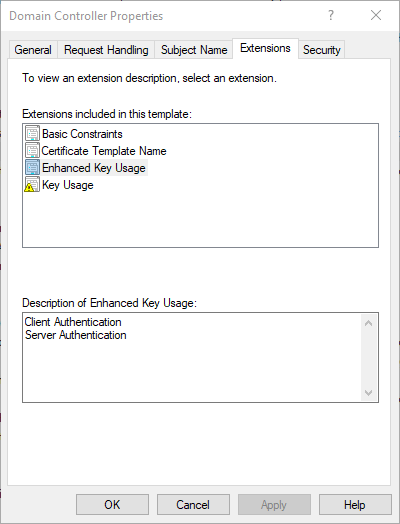
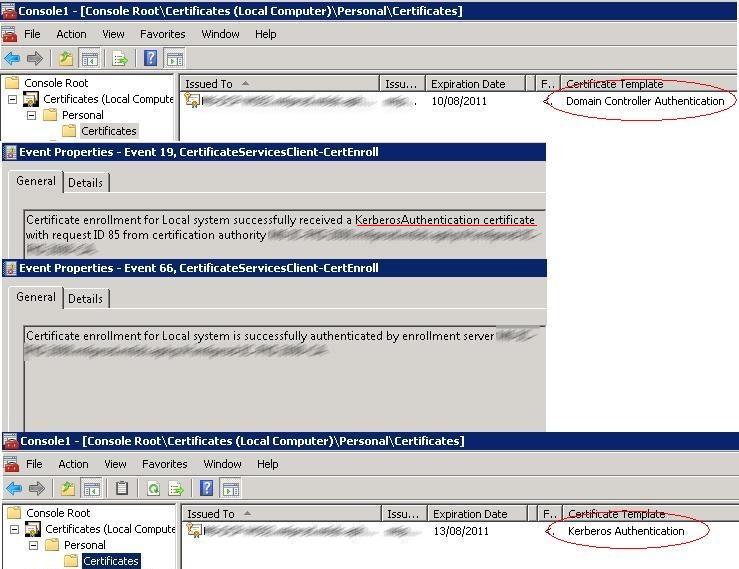
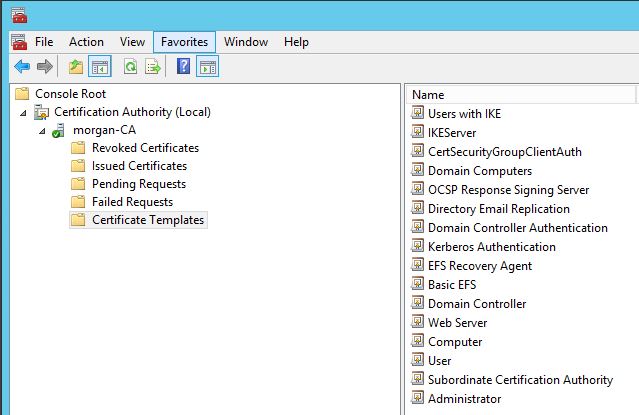
This is a modern, version 3 template that is often considered the best of the default options. Its primary purpose is to enable certificate-based authentication for the Kerberos protocol, including smart card logon. When DCs auto-enroll for a certificate, this is often the template they will use if available and no other template with a higher priority is configured. It includes both Client Authentication and Server Authentication in its Extended Key Usage (EKU) and is generally a solid starting point. However, its default cryptographic settings might not align with the latest security recommendations, making a custom duplicate a better choice.
The Domain Controller Template
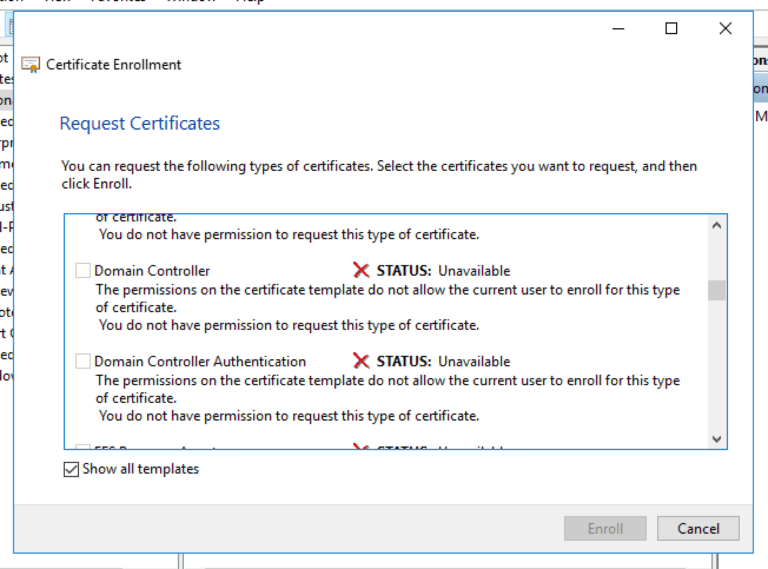
This is a legacy, version 1 template that has been available since Windows 2000. Because it is a v1 template, it is highly inflexible and cannot be modified. Its settings are hardcoded and use older cryptographic standards. While it will enable LDAPS, it is not recommended for any new deployment. If you see certificates issued from this template, you should plan to replace them with certificates from a modern, custom template.
The Domain Controller Authentication Template
This is a version 2 template, which is an improvement over the original "Domain Controller" template. It provides more flexibility and better security settings. Like the "Kerberos Authentication" template, it is suitable for enabling LDAPS and smart card logon. However, an administrator still has no control over the default cryptographic providers or key lengths without duplicating it.
Why a Custom Template is Often Better
Relying on default templates means accepting Microsoft's default security configuration, which may not be aggressive enough for your organization's policies. Creating a custom template by duplicating a modern one like "Kerberos Authentication" offers several distinct advantages:
* Cryptographic Control: You can explicitly define the minimum key size (e.g., 4096-bit), the request hash algorithm (e.g., SHA256 or higher), and the cryptographic provider (e.g., Key Storage Provider) to meet modern security standards.
* Validity Period: You can set a custom validity and renewal period that aligns with your internal certificate lifecycle management policies, rather than accepting the default one or two years.
* Granular Permissions: You have full control over which security principals can read, enroll, or auto-enroll for the certificate, enhancing the principle of least privilege.
* Clarity and Auditing: A custom name (e.g., "Contoso Domain Controller Auth") makes it immediately clear in the CA's issued certificates list and on the DC itself which template was used, simplifying auditing and troubleshooting.

How to Create a Custom Domain Controller Certificate Template
Creating a custom template is a straightforward process that involves duplicating an existing template and modifying its properties. The following steps will guide you through creating a modern, secure template for your domain controllers.
Step 1: Accessing the Certificate Templates Console
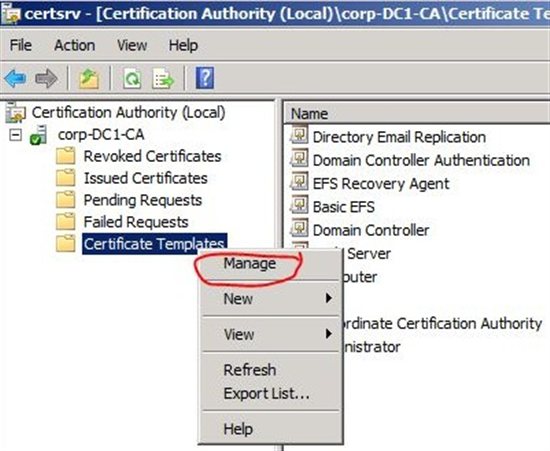
First, you need to open the Certificate Templates management console. This is not available in the standard Server Manager dashboard tools.
1. On a server with the Active Directory Certificate Services role installed, or on a management workstation with the RSAT tools, press Win + R to open the Run dialog.
2. Type certtmpl.msc and press Enter. This will open the Certificate Templates Console, which lists all available templates in your Active Directory forest.
Step 2: Duplicating a Base Template
It's always best practice to duplicate an existing template rather than creating one from scratch. For this purpose, the Kerberos Authentication template is the ideal starting point because it is a modern template with the correct key usages already defined.
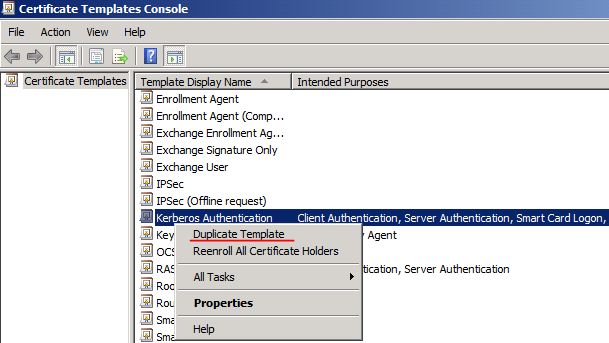
1. In the console, find the Kerberos Authentication template.
2. Right-click on it and select Duplicate Template.
3. The Properties of New Template window will appear. On the Compatibility tab, you can set the minimum supported CA and certificate recipient operating systems. For most modern environments, selecting Windows Server 2016 for the CA and Windows 10 / Windows Server 2016 for the recipient is a good choice, as this enables the latest cryptographic features.

Step 3: Configuring General Properties
On the General tab, you need to give your new template a unique and descriptive name.
* Template display name: This is the friendly name that will appear in the UI. For example, Contoso Domain Controller Authentication.
* Template name: This is the common name used by AD. It is generated from the display name and should not contain spaces. For example, ContosoDomainControllerAuthentication.
* Validity period: Define how long the certificate will be valid. A period of 2 years is a common choice, balancing security with administrative overhead.
* Renewal period: This determines when the auto-enrollment process will attempt to renew the certificate before it expires. A value of 6 weeks or 2 months is typical.
* Ensure Publish certificate in Active Directory is checked.
Step 4: Configuring the Subject Name Tab
The subject name identifies the server to which the certificate is issued. This is a critical setting for a DC.
1. Select the Subject Name tab.
2. Choose the Build from this Active Directory information option.
3. For Subject name format, select DNS name from the dropdown. This is crucial, as clients will connect to the DC using its Fully Qualified Domain Name (FQDN).
4. Ensure that only the DNS name checkbox is selected under the "Include this information in alternate subject name" section. This adds the FQDN to the Subject Alternative Name (SAN) field, which is the modern standard for identifying servers.
Step 5: Configuring the Cryptography Tab
This tab is where you enforce modern security standards.
* Provider Category: Select Key Storage Provider. This enables the use of modern Cryptography Next Generation (CNG) providers.
* Algorithm name: Choose RSA.
* Minimum key size: Enter 2048 at a minimum, with 4096 being the recommended choice for high-security environments.
* Request hash: Select SHA256 or a higher algorithm from the dropdown. Avoid using the obsolete SHA1.

Step 6: Configuring the Security Tab
Finally, you need to assign the correct permissions to allow domain controllers to request and receive certificates from this template.
1. Select the Security tab.
2. By default, Authenticated Users will have Read permissions, which is correct.
3. Domain Admins and Enterprise Admins should have Full Control.
4. You need to add the Domain Controllers security group. Click Add..., type Domain Controllers, and click OK.
5. Select the Domain Controllers group in the list and grant it Read and Enroll permissions. If you plan to use auto-enrollment (recommended), also grant the Autoenroll permission.
Click Apply and OK to save your new custom template.
Publishing and Deploying the New Template
Creating the template is only the first half of the process. You must now publish it to your Certificate Authority so it can be issued, and then configure your domain controllers to request it.
Publishing the Template to the Certification Authority (CA)
A template only exists in Active Directory until it is explicitly published on a CA.
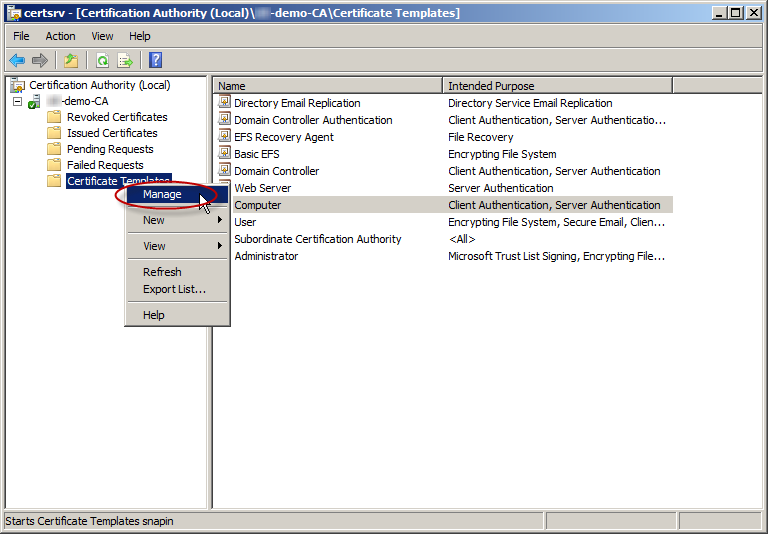
1. Open the Certification Authority console by running certsrv.msc.
2. In the left pane, expand your CA's name.
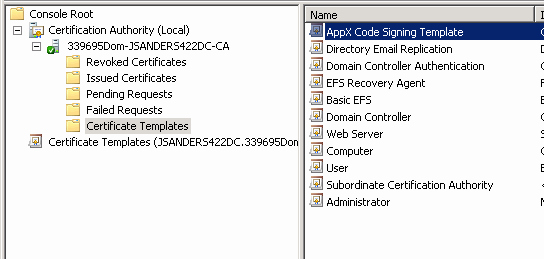
3. Right-click on the Certificate Templates folder and select New -> Certificate Template to Issue.
4. A list of available templates will appear. Find the custom template you just created (e.g., "Contoso Domain Controller Authentication") in the list.
5. Select it and click OK.
Your template will now appear in the list of issued templates, and the CA is ready to issue certificates based on it.
Deploying Certificates via Group Policy (Auto-enrollment)
The most efficient and scalable way to deploy the new certificates to all your domain controllers is through Group Policy Object (GPO) auto-enrollment.
1. Open the Group Policy Management console by running gpmc.msc.
2. Navigate to your domain, right-click on the Default Domain Controllers Policy, and select Edit.
3. In the Group Policy Management Editor, navigate to: Computer Configuration -> Policies -> Windows Settings -> Security Settings -> Public Key Policies.
4. In the right pane, double-click on Certificate Services Client - Auto-Enrollment.
5. In the properties window, set the Configuration Model to Enabled.
6. Check the box for Renew expired certificates, update pending certificates, and remove revoked certificates.
7. Check the box for Update certificates that use certificate templates. This is important for replacing any existing DC certificates with one from your new, more secure template.
8. Click OK to save the settings.
Once this policy is in place, domain controllers will automatically request a certificate from the new template during the next Group Policy refresh cycle.
Verification and Troubleshooting
After configuring the template and GPO, it's essential to verify that the certificates have been issued correctly and that services like LDAPS are working.
Verifying Certificate Issuance
You can check for the new certificate on any domain controller.
1. On a DC, run certlm.msc to open the certificate store for the local computer.
2. Navigate to Personal -> Certificates.
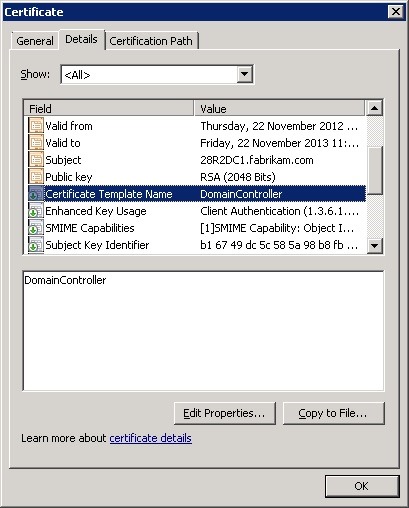
3. You should see a new certificate issued to the FQDN of the DC. Double-click it and go to the Details tab. Verify that the Template field shows the name of your new custom template.
You can also check on the CA server itself. In the Certification Authority console, look in the Issued Certificates folder to see the newly issued certificates for your DCs.
Testing LDAPS Connectivity
A simple way to test if LDAPS is working is by using the LDP.exe tool, which is available on servers with Active Directory Domain Services or the RSAT tools installed.
1. Run LDP.exe.
2. Go to Connection -> Connect....
3. For the Server, enter the FQDN of your domain controller.
4. For the Port, enter 636.
5. Check the SSL box.
6. Click OK.
If the connection is successful, you will see output in the main window detailing the successful TLS/SSL connection and the server's rootDSE information. If it fails, LDAPS is not configured correctly.
Common Troubleshooting Steps
- Certificate Not Issued: If a DC does not receive a certificate, run
gpupdate /forceon it and wait a few minutes. Check the event logs for any errors related to certificate enrollment. The most common cause is a permissions issue on the certificate template or the CA itself. Ensure the Domain Controllers group has Enroll and Autoenroll permissions. - Template Not Visible for Issuance: If you cannot see your new template in the "Certificate Template to Issue" list on the CA, it's likely a compatibility issue. The compatibility level of the template (e.g., Windows Server 2016) cannot be higher than the operating system version of the CA.
- LDAPS Fails to Connect: Verify that the firewall on the domain controller (and any network firewalls in between) allows traffic on TCP port 636. Also, ensure the certificate's subject name or SAN correctly matches the FQDN of the server you are trying to connect to.
Conclusion
Properly securing your Active Directory domain controllers is a foundational element of enterprise security. While enabling LDAPS and other secure services is critical, simply using the default certificates is not enough. By creating and deploying a custom Domain Controller Certificate Template, you take deliberate control over your infrastructure's security posture. This process allows you to enforce modern cryptographic standards, such as 4096-bit RSA keys and SHA256 hashes, which are essential defenses against evolving threats.
The benefits of a custom template extend beyond cryptography. It provides clarity in administration, simplifies auditing, and ensures that all domain controllers adhere to a consistent, centrally managed security policy. The use of Group Policy for auto-enrollment automates the deployment and renewal process, reducing administrative burden and eliminating the risk of service disruption due to expired certificates.
Ultimately, taking the time to configure a custom certificate template is a proactive investment in the health and security of your Active Directory environment. It is a best practice that moves your organization from a default, reactive state to a hardened, intentionally designed security model, ensuring that the nerve center of your network is robustly protected.
0 Response to "Domain Controller Certificate Template"
Posting Komentar